How to Set Up Your First Smartwatch
Discover
We test so you don't have to
See our buying guides→How to Set Up Your First Smartwatch
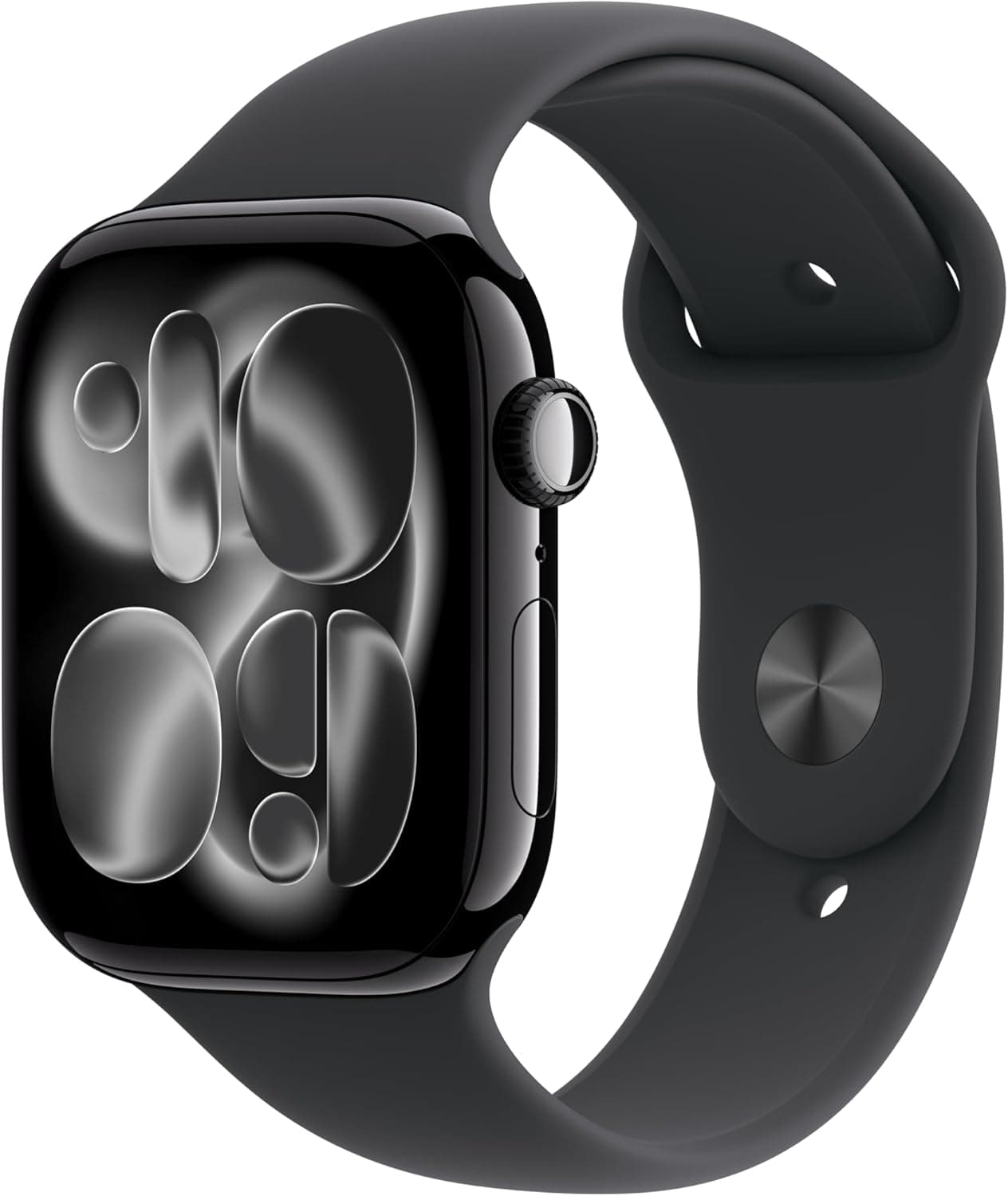
Unbox it. Stare at it. Realize you aren't entirely sure what to do next. I remember pulling my first smartwatch out of the box and immediately feeling overwhelmed by the flashing screen and total lack of physical instructions. I've tested a bunch of these since then. Getting an Apple Watch Series 11 or a basic activity tracker like the SAMSUNG Galaxy FIT 3 is the fun part. Making it actually work for your daily routine takes a few extra minutes.
Don't skip the actual setup
You bought this thing to track your heart rate or stop missing texts when your phone is buried in the couch cushions. If you just slap it on your wrist and ignore the settings menu, it functions as a highly overpriced digital clock. Getting the configuration right means you actually get the health data you care about, without being buzzed every time a spam email hits your inbox.
Getting it running right
1. Pick your hardware
You need the watch first. I usually push iPhone owners toward the Apple Watch Series 11 because it talks to iOS without throwing constant errors. If you just want to count steps and not spend a fortune, the SAMSUNG Galaxy FIT 3 tracks fitness fine and the battery lasts way longer than Apple's models.
2. Charge it up first
Don't try to set it up on a 5% battery. Most of these come with a magnetic puck or a wireless dock. Leave it on the charger for a solid hour. A dead watch midway through a firmware update is a headache you definitely want to avoid.
3. Grab the phone app
The watch needs your phone to do the heavy lifting for the initial sync.
- iPhone owners: Open the App Store and search for "Watch." It's probably already installed on your phone, honestly.
- Android users: Search for "Samsung Health" or your brand's equivalent in the Google Play store.
4. Pair the devices
Turn on Bluetooth on your phone and open that companion app.
- For Apple Watch: Bring it physically close to your iPhone. A screen pops up asking you to pair. Hit continue and let your phone camera scan the swirly code on the watch screen.
- For Samsung: Open the Samsung Health app, tap the smartwatch option, and follow the on-screen prompts.
5. Tweak the settings immediately
This is where you save your sanity.
- Mute the noise: Turn off almost everything. Only allow texts, calls, and calendar alerts. You don't need your wrist vibrating for Instagram likes.
- Set health metrics: Tell it what to look for. On the Apple Watch Series 11, I always turn on sleep tracking and background heart rate monitoring.
- Pick a readable face: Find something you can read at a glance. Apple has dozens of faces you can swap around, while Samsung users can download new layouts from the Galaxy Store.
6. Load up your apps
The defaults are okay, but third-party software makes it better.
- For Apple hardware: Dig into the App Store. I immediately install Spotify and Strava.
- For Galaxy devices: Use the Galaxy Store to grab your preferred workout trackers.
7. Swap the default band
The rubber strap included in the box gets sweaty and boring fast. I usually buy a replacement right away.
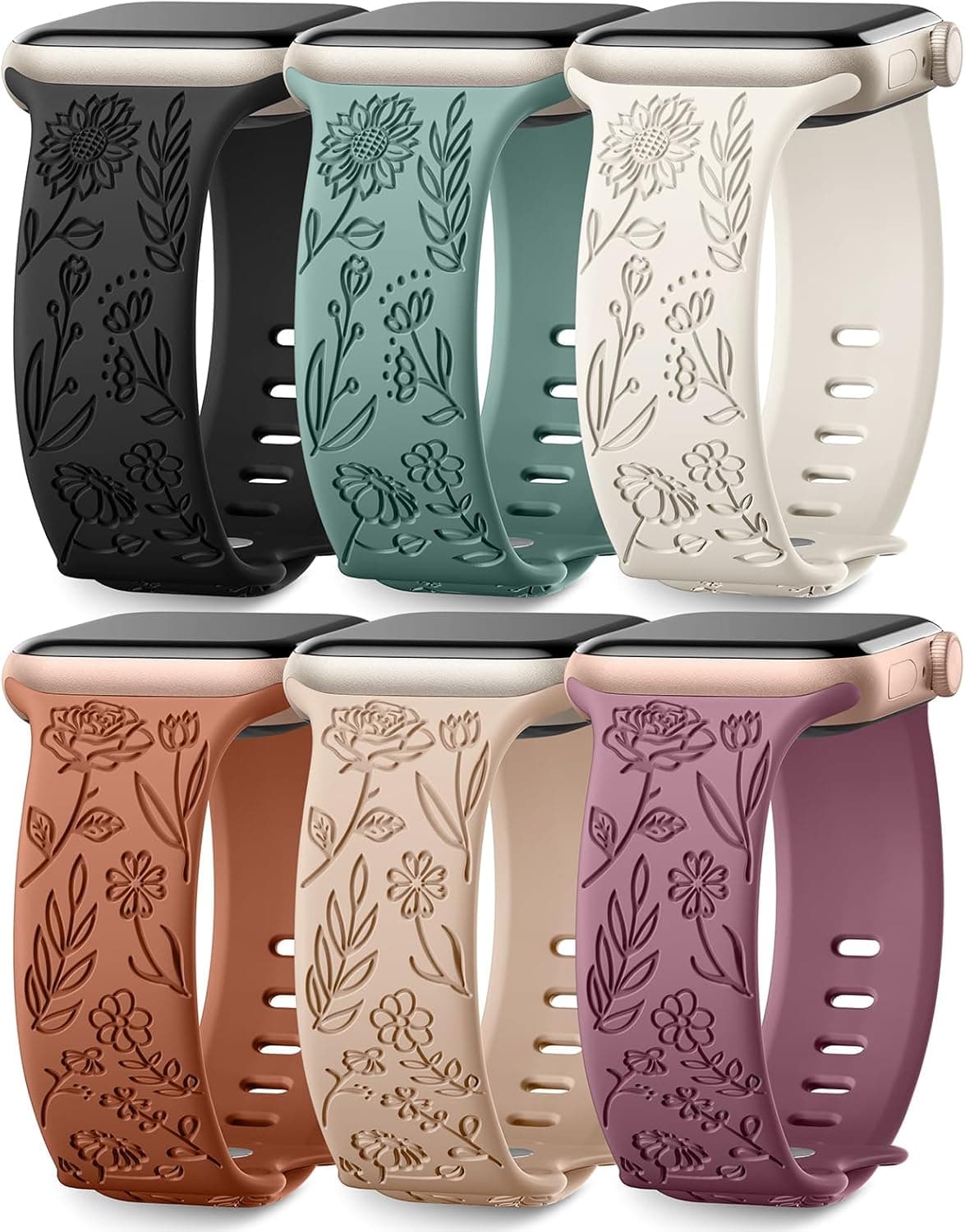
- Bright and floral: The Stylish SNBLK Floral Bands for Apple Watch breaks up the standard tech aesthetic.
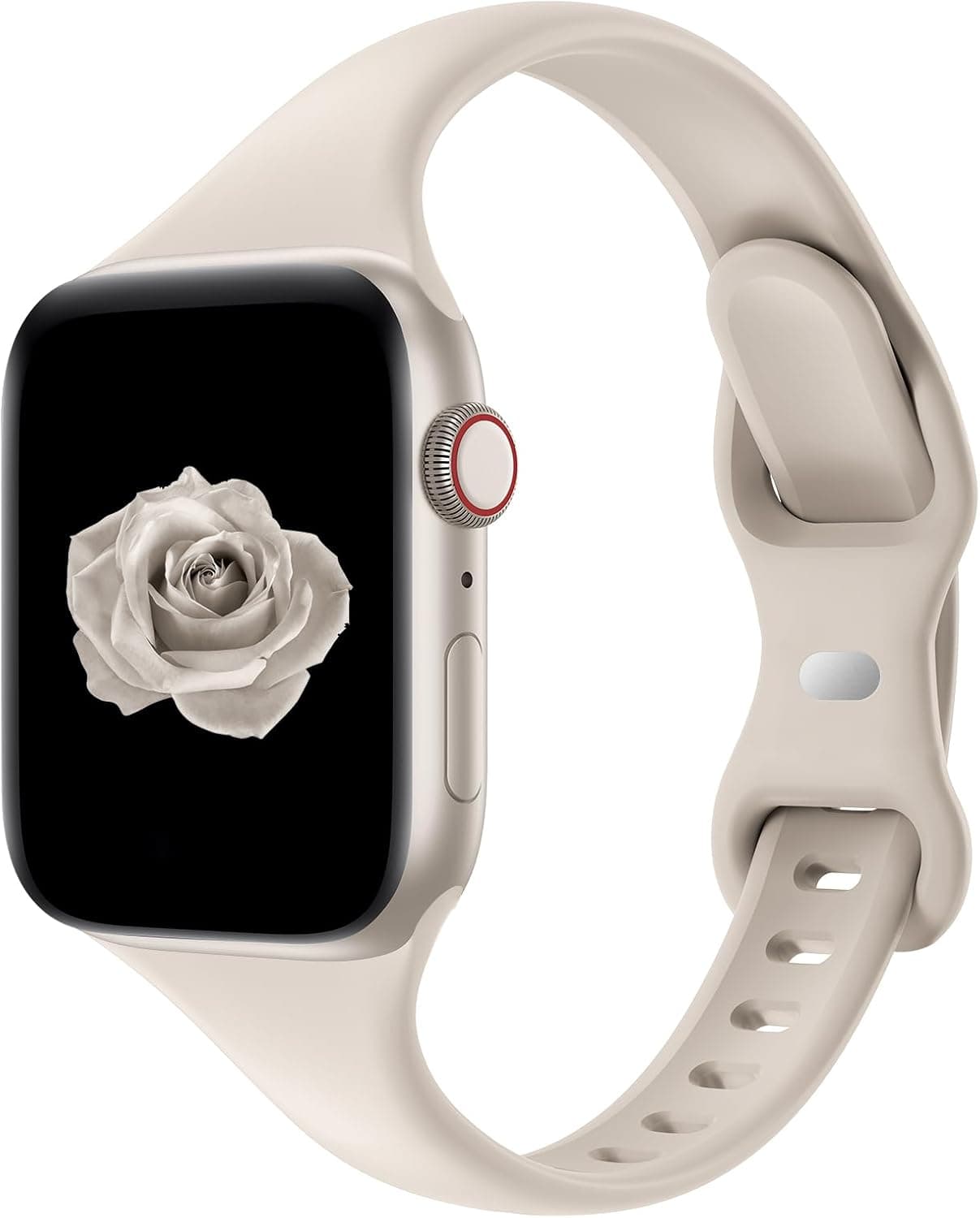
- Slimmer daily wear: A Slim Silicone Replacement Strap for Apple Watch - Starlight feels much less bulky on my wrist during typing-heavy workdays.
8. Sync your music
Running with a heavy phone bouncing in your pocket is miserable. Download playlists directly to the watch. Apple Music works natively on Apple Watch. Samsung users can link up Spotify or YouTube Music.
9. Dig into the health data
After a few days of wearing it, check the numbers.
- Review daily stats: Look at your sleep stages, resting heart rate, and blood oxygen levels.
- Check phone charts: If you use the Apple Watch Series 11, the Apple Health app on your iPhone aggregates all this into graphs that actually make sense.
10. Fix your alerts again
You will inevitably realize you forgot to mute an annoying app. Go back into your settings and silence it. The goal is to check your phone less, not be distracted by your wrist.
11. Run the software update
There is almost always a day-one patch. Go to the settings in your companion app and run the update to fix bugs and patch security holes. Do this overnight if it's a massive file.
What I'd buy right now
- Apple Watch Series 11 - You can usually grab this for about $329. I wear it daily because the health sensors are incredibly accurate and it rarely drops connection with my phone.
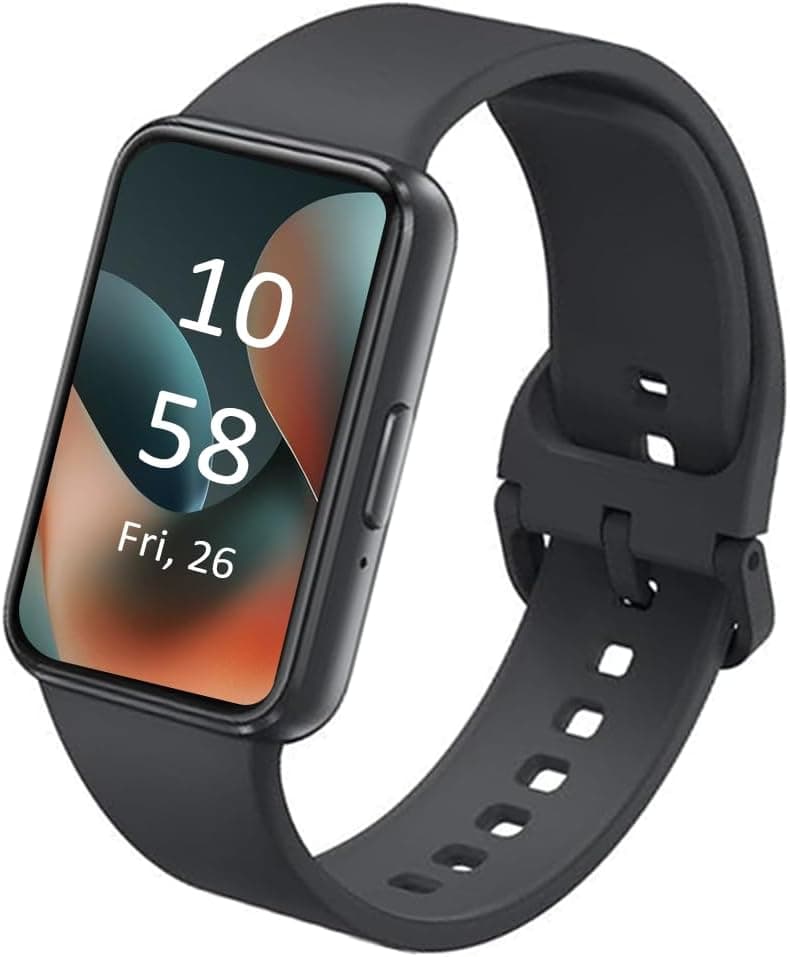
- SAMSUNG Galaxy FIT 3 - Costing around $43, this is the cheapest way to get a solid AMOLED screen. It covers basic step counting and sleep tracking without the daily charging hassle.
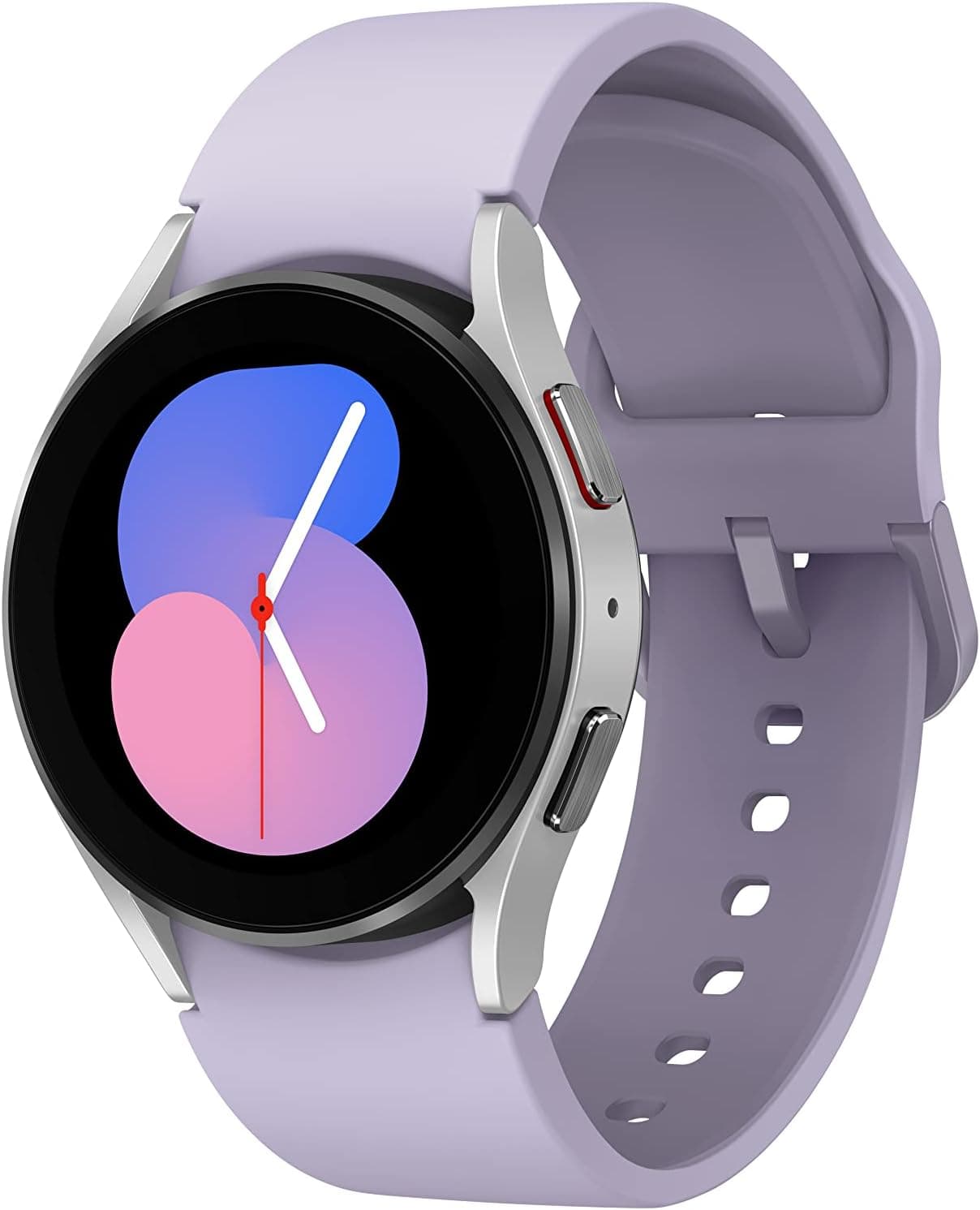
- SAMSUNG Galaxy Watch 5 - If you use an Android and want actual smartwatch features, this starts near $100. It tracks workouts much better than basic fitness bands.
Making the final call
Getting your first wearable running takes a bit of patience. The upfront time spent tweaking menus pays off when the watch actually behaves the way you want it to.
Pick your hardware based on your phone ecosystem. If you have an iPhone, the Apple Watch Series 11 is the obvious route. If you just want cheap fitness stats, grab the SAMSUNG Galaxy FIT 3 and call it a day. Figure out what data you actually care about, shut off the noisy notifications, and get moving.
Discover